Microsoft plans to release its Office 2010 software suite in both 32-bit and 64-bit flavors, making it the first Office suite to support both versions. As its name suggests, both versions will be available sometime next year. So, what surprise PowerPoint 2010 will bring to us?
To summarize, PowerPoint 2010 can help us make presentations more dynamic with improved audio and visual capabilities. In addition to this, we can effectively use web applications to make our work available anywhere, and work with other people on the same presentation much easier. Now let’s have a quick look on it clearly.
1. New Animation Tools in PowerPoint 2010New Animation tools, including an animation painter to copy animation from one object to another and also more animation designs.
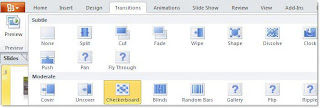
 2. New 3D transitions make livening up a presentation easier in PowerPoint 2010
 3. Directly insert videos from your file in PowerPoint 2010
You can now directly insert a video from your file to your presentation. Just click Insert, and then Video. Finally click Video from file…

Also, editing video is much easier in PowerPoint 2010. You can trim video clips within PowerPoint and add effects such as reflection or color washes.

Here is an example:
This picture shows the way that the video displays before editing

This picture shows the way that the video displays after editing
 4. Directly insert videos from online video sites such as YouTube, MySpace in PowerPoint 2010
Here are the steps of how to do it in PowerPoint 2010
1) Click Insert, and then select Video from Online Video Site…
2) Copy and paste the embed HTML into the box that pops up
3) Click Insert button, and then the video will be added to the presentation. Make sure your computer is connected with the Internet when show the presentation
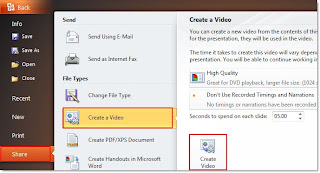
5. Create Video from PowerPoint 2010You can convert your PowerPoint 2010 to WMV video files directly in your presentation. Click Back button, and then Share. Finally click Create a Video.
After you convert your PowerPoint 2010 to video files, you can share it online with others. Also, you can load the video to your smart phones for reviewing.
With these new features, I believe PowerPoint 2010 will become a perfect tool for presenting our ideas, especially with the features of inserting video and creating video. So, let’s expect the release of it.
However, if you are eager to convert your PowerPoint to stunning video files now, you can try this tool:
Acoolsoft PPT2Video Converter. It supports converting PowerPoint 2000/2002/2003/2007 to AVI, WMV, MPEG, MP4, MOV, FLV and 3GP. Except video output choice, you can also burn your PowerPoint to DVD with this
PPT2DVD tool.


 Posts
Posts

